What is an Invoice Estimate?
An invoice estimate is a calculated breakdown of the expected costs for quality and/or quantity inspection. Invoice estimates appear on the inspection invoice for the following nomination types:
• Marine
• Marine Expeditor
• Sample
• Pipeline/Pumpover
• LNG
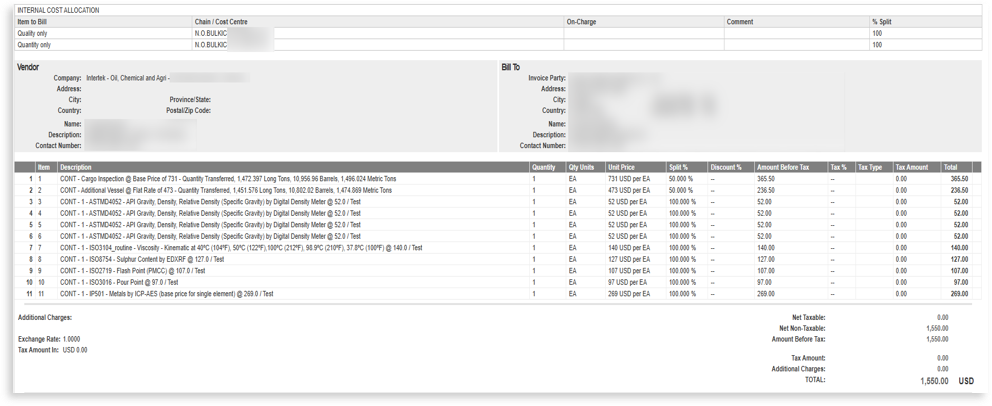
The estimate helps invoice approvers at cargo owner companies make faster, better-informed decisions. Invoice approvers can compare it against the invoice total submitted by the inspection company to check that the charges are in line with what was expected.
NOTE: Only cargo owner users are able to view the invoice estimate (it is not visible to inspection companies)
What Drives an Estimate?
To build the estimate, Navarik compares the nomination’s details against an active price book. It matches the inspection company, grade, location, pricing groups, geo region, required services, and recorded inspection data.
The price book is an Excel sheet that the inspection company provides to the cargo owner. A cargo owner user who maintains price books, typically a system administrator, uploads it to Navarik Inspection.
How Invoice Estimation Works:
1. Nomination details provide the inputs:
The grade, location, inspection company, transport, required quantity and quality tests, and invoice instructions determine which pricing rules apply.
2. Catalogue data identifies the pricing keys:
The grade supplies the Base Price Group and Discount Group. The location supplies the Pricing Geo Region.
3. The price book supplies the prices:
Quantity prices cover sampling and inspection rules. Quality prices cover laboratory test methods. Discount rows provide applicable discounts.
4. Navarik calculates the expected cost:
The estimate is displayed in the nomination or invoice estimate breakdown and can be compared with the submitted invoice.
Note:
Invoice estimates are expected costs, not necessarily the final payable amount. The final invoice may reflect actual inspection results, approved services, discounts, taxes, cost splits, and additional charges.
How to View an Invoice Estimate:
1. Navigate to an invoice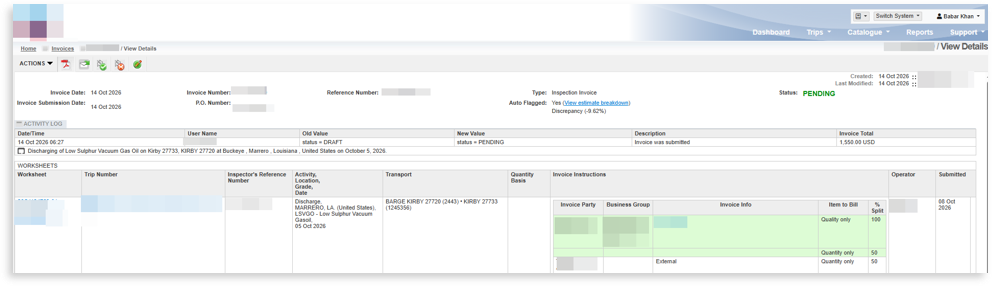
2. Click on "View estimate breakdown"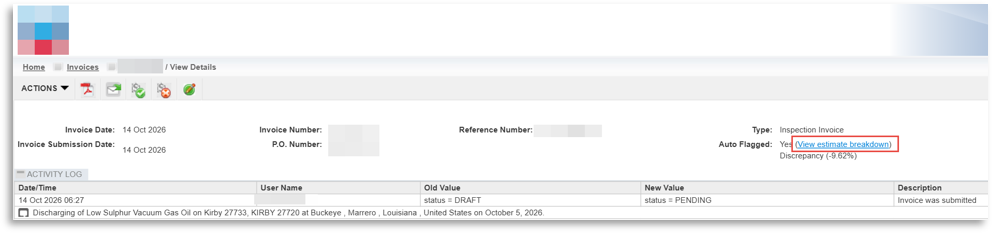 3. Compare the line item on the actual invoice, and view the quality tests performed on the inspection worksheet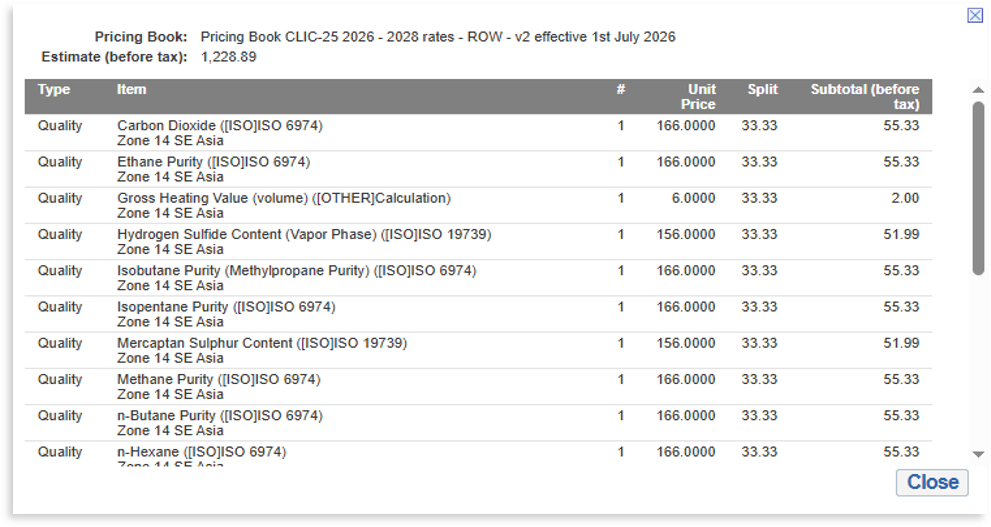
Reasons why the Estimate may be Missing or Incomplete:
1. The prices on the price book are expired (make sure the system is using the most up-to-date prices)
NOTE: Only users with the Price Book Manager permissions can see this by going to the Catalogue drop-down menu and selecting Price Book Manager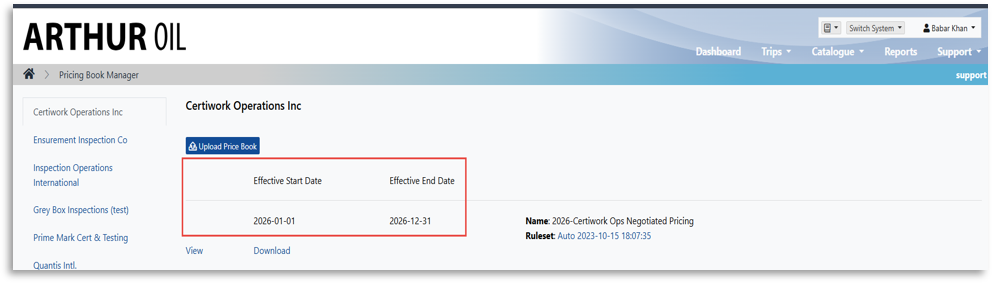
2. Confirm the movement is not STS. Note: Ship-to-ship (STS) is not supported for invoice estimates
Note: This can be verified on the nomination form: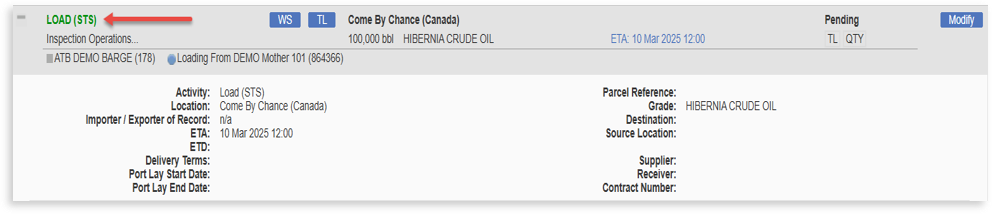
3. Confirm that pricing is configured. Verify that the active price book contains the required QUALITY, QUANTITY, and DISCOUNT records for the relevant geo region.
To verify the above, navigate to the Catalogue drop-down menu and select Price Book Manager
a. From the Price Book Manager page, select the respective Incspection company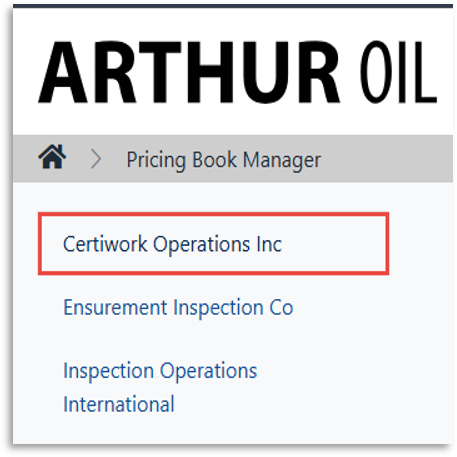
b. On the Price Book Manager company page, click "View" 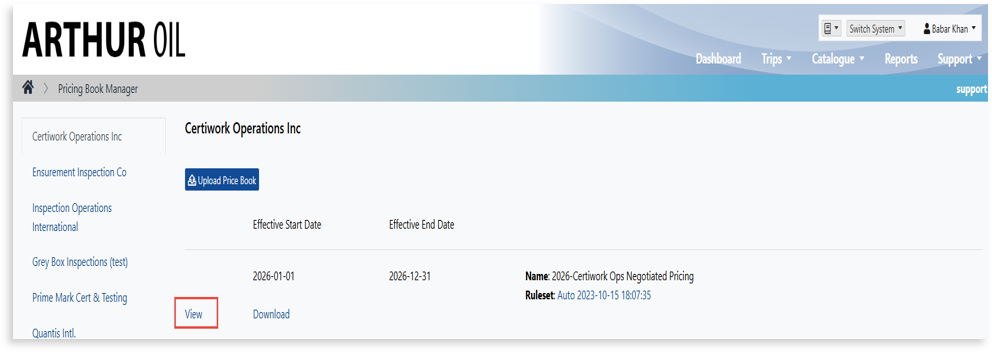
c. On the left-hand side of the Price Book, click on QUALITY, QUANTITY, or DISCOUNT to check if the price is available for the respective Geo Region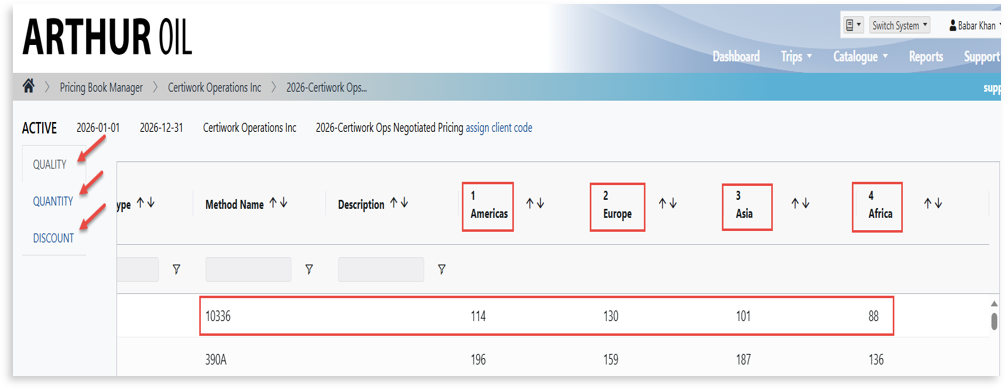
4. Check catalogue assignments. Confirm that the grade has the correct Base Price Group and Discount Group.
To verify this:
a. Navigate to the catalogue menu and select "Grades"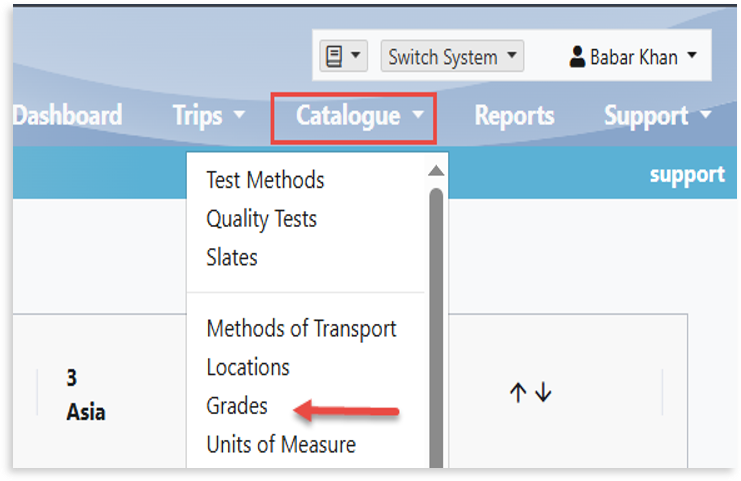
b. On the grade-viewall page, click the filter tab, enter the grade name, and click Apply to locate the grade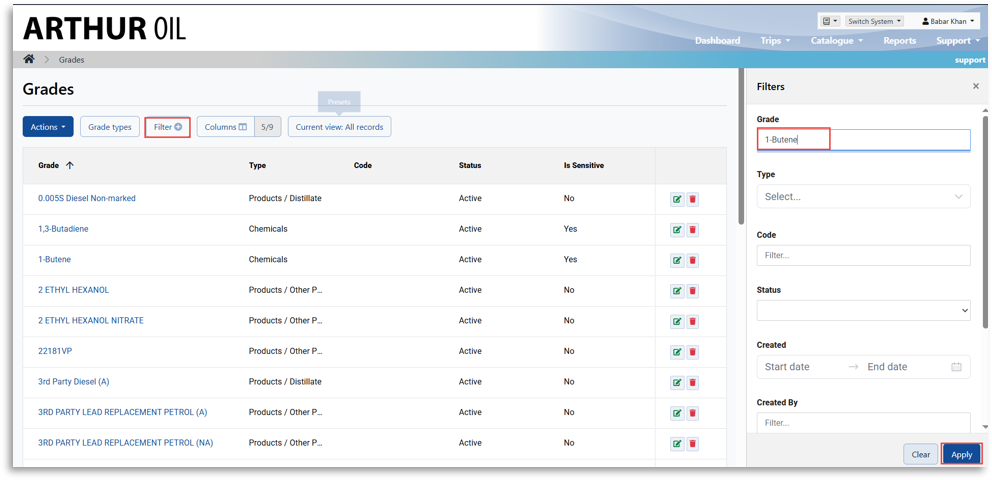 c. Click on the grade name
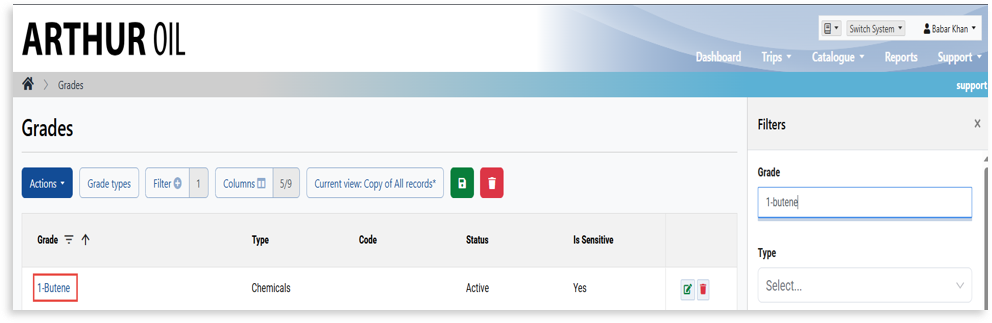 d. On the grade view-one page, check the Base Price Group and Discount Group have been assigned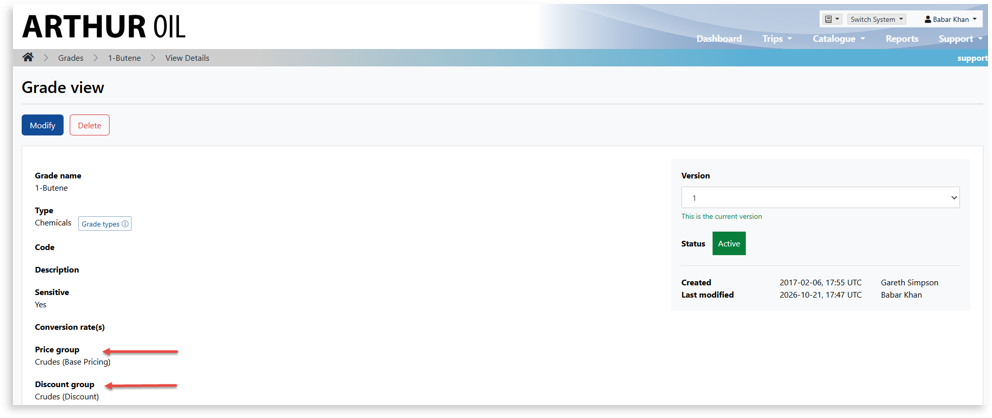
5. Check the required service. Confirm whether quantity or quality inspection was required in the nomination.
A service that was not required may not produce an estimate.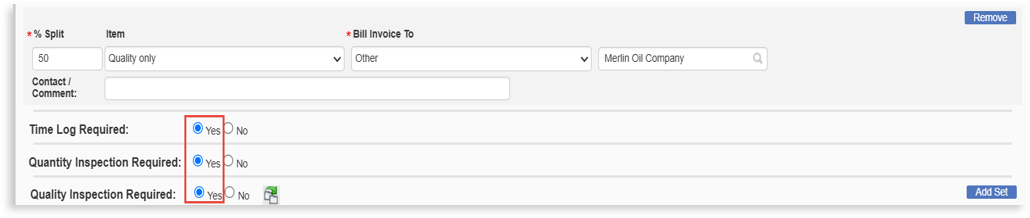
6. The unit of measure selected on the nomination is not Barrels (Bbl).
The unit of measure must be Barrels in order for the invoice to produce an estimate.
Note: This can be verified on the nomination form: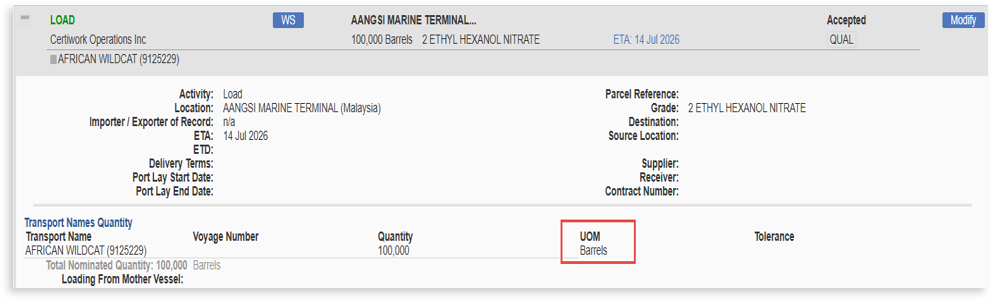
7. The inspection company has selected "not performed" on the quality tests on the worksheet.
If this occurs, the inspection company has not keyed in the quality test results that are needed on the worksheet. The operator can request a retest from the inspection company to make the necessary corrections. See: Unlocking an All Submitted Worksheet
Note: This can be verified on the inspection worksheet: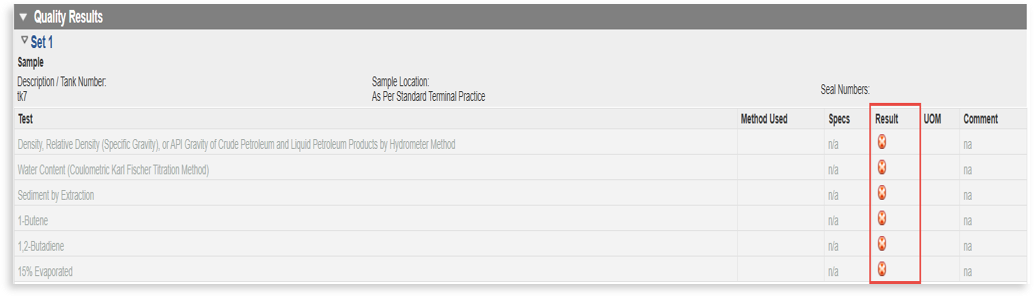
To get to the inspection worksheet, from the voyage-viewone page, click the hyperlink "All Submitted" or "Quality" and scroll to the Quality section.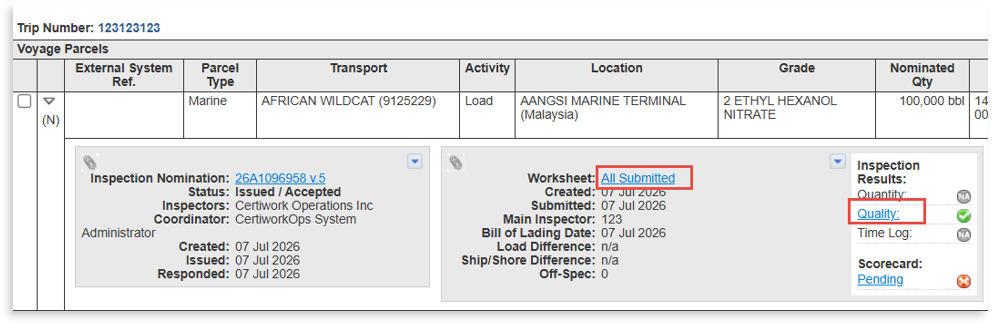
8. If you are a cargo owner user and are unable to see the option for an invoice estimate on an invoice, it is possible that your company does not subscribe to this feature. Please feel free to email support@navarik.com to request information.
Other relevant links: