If you are a user with system administrator permissions, please follow the below steps to create a new user account. If you are not a system administrator and would like a user account in Navarik Inspection, please get in touch with a system administrator at your company.
1. The first step is to make sure you have all of the information needed for the account
- An email address
- Role(s) needed for the user account
- Office the user account will be assigned to
- Environment (Production, UAT)
- NOTE: If you are looking to have an account created in the Integration (Integ) environment only (no production account), please contact support@navarik.com with the above information
2. Now you are ready to create a person account
Navigate to the Catalogue (or Master Data) menu >> People Directory
• Click on the Create tab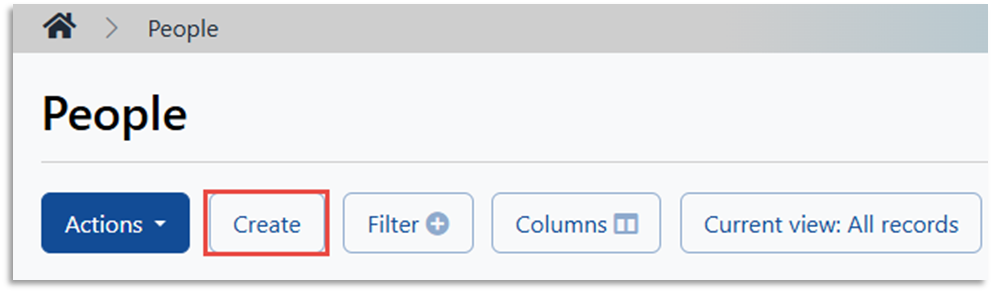
• Select the Company name and office• Enter user email address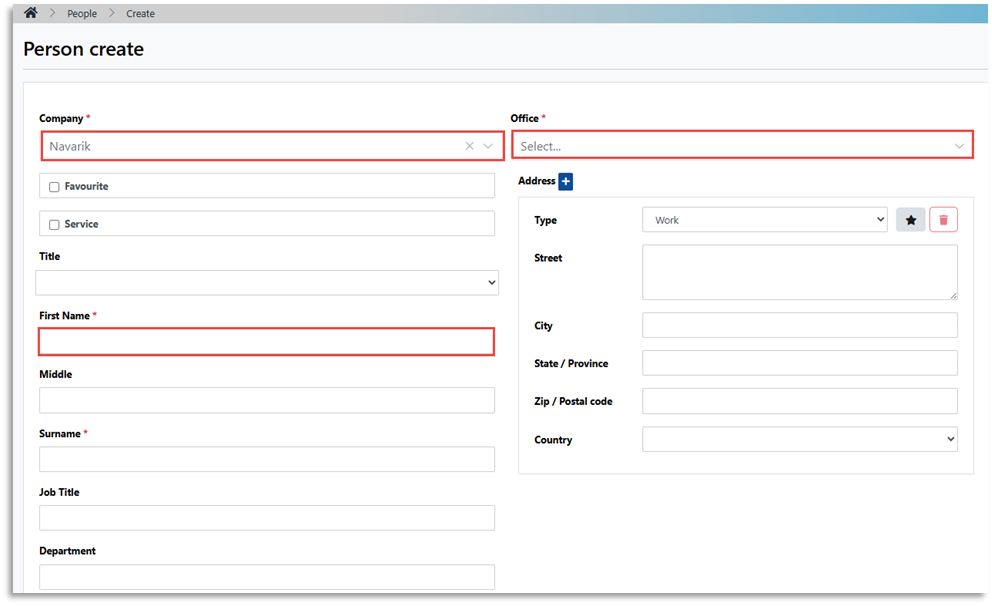
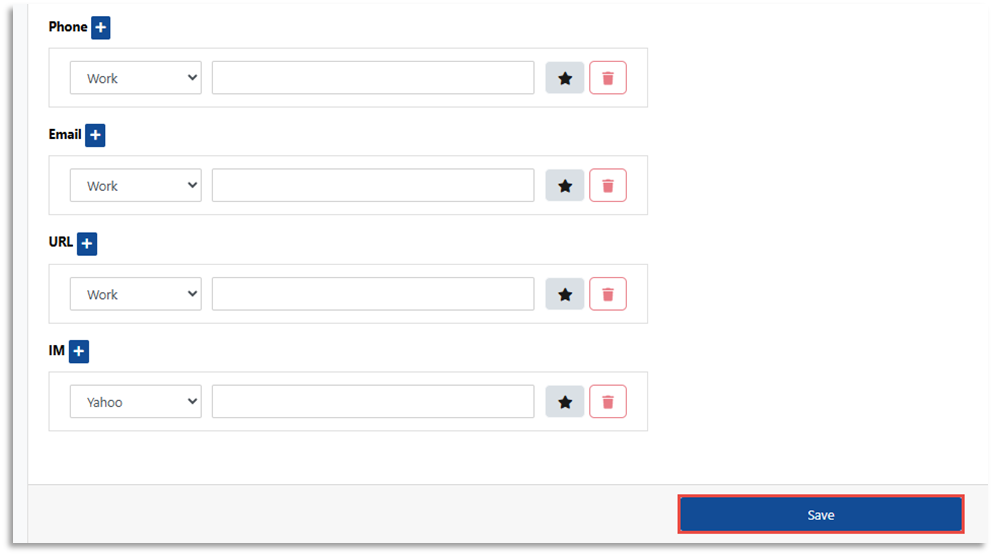
3. Create a User Account for the Person:
• On the Person View page, click "Create User Account" tab
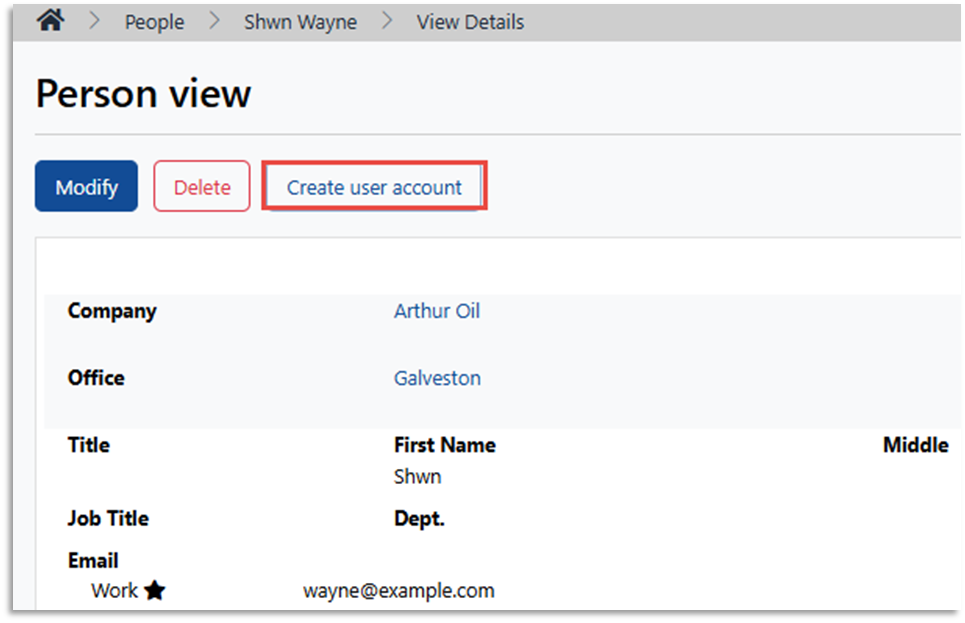
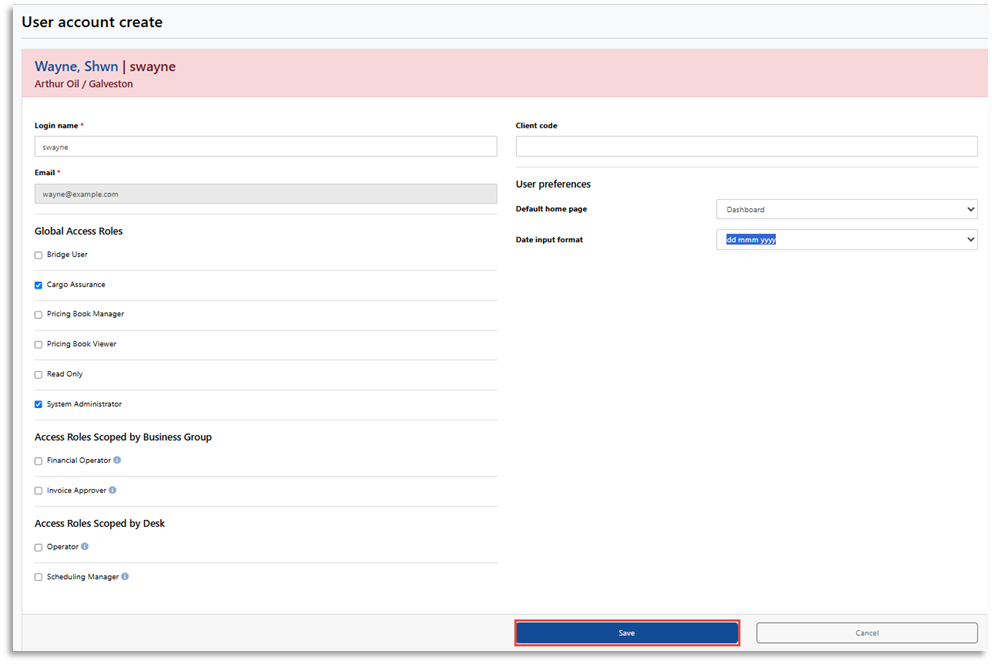
• On the User Account Create page, enter the desired user roles and user name. *IMPORTANT* make sure the email address is correct, as this cannot be changed after
• Click Save
• Reset the users' password by clicking on the "Actions" drop-down menu and clicking "Reset Password"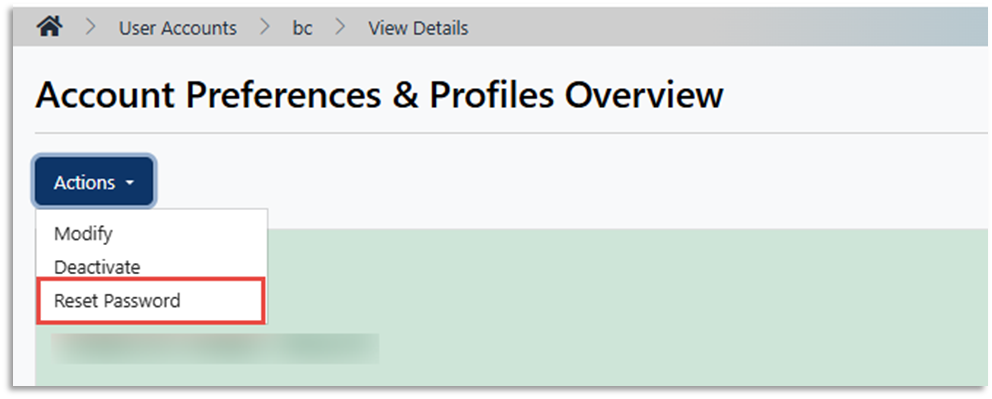
At this point, the user will have received a notice to confirm their account. After confirming, please prompt them to follow the Password Recovery steps.
Please note: These are the same steps in the UAT environment.
- If you would like a permanent user in the Integ environment, you should already have access if you have a Production account but you may need to reset your password.
- If you would like an Integ-only user interface user account, please contact support@navarik.com